Google Business Profile for New Optometry Practices: The Complete Setup
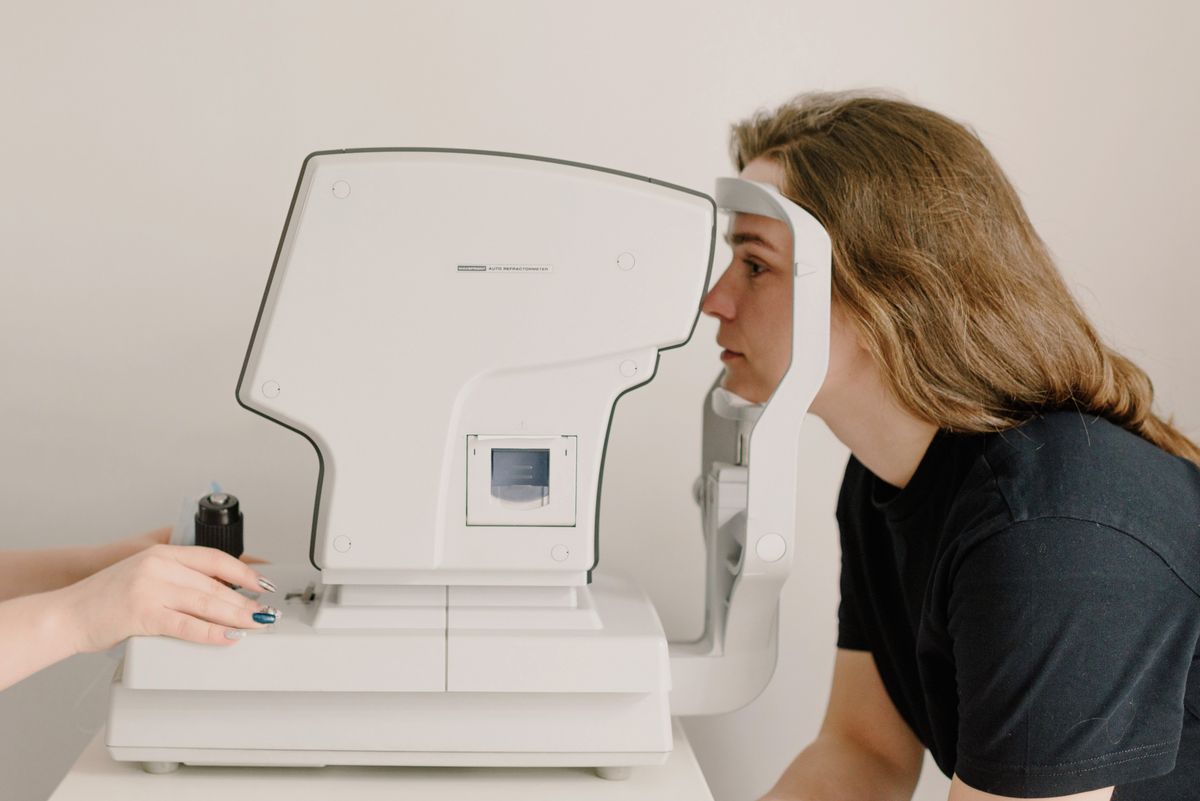
Step-by-step guide to setting up and optimizing your Google Business Profile to attract local patients and rank in map results.
Setting up a Google Business Profile (GBP) is the single most effective local marketing move for a new optometry practice. It puts you on Google Maps and in local search results, where patients are actively looking for eye exams, glasses, and contact lenses. This guide walks you through the complete setup, from claiming your listing to optimizing it for patient conversions. Follow these steps and you will have a profile that works for you 24/7.
Why Google Business Profile Matters for Optometry
Local search is where your patients are. According to Google, 76% of people who search for something nearby visit a business within a day. For optometry, searches like “eye exam near me” or “optometrist in [city]” are high-intent. A well-optimized GBP helps you appear in the local pack (the top 3 map results) and in organic results. It also provides essential information at a glance: hours, phone number, directions, and reviews. Without a GBP, you are invisible to a large chunk of potential patients.
Step 1: Claim and Verify Your Profile
If you haven’t already, go to business.google.com and click “Manage now.” Enter your practice name, address, and phone number. Use your exact NAP (Name, Address, Phone) as it appears on your website and signage. Consistency is critical for local SEO.
Verification usually takes a few days. Google may send a postcard with a code, or you might be able to verify by phone or email. Complete this promptly. Once verified, you can edit your profile.
Step 2: Complete Every Section of Your Profile
A complete profile is more likely to rank and convert. Fill out all fields, including:
- Business category: Choose “Optometrist” as your primary category. You can add secondary categories like “Contact Lenses Supplier” or “Eye Care Center.”
- Description: Write a 750-character description that includes your services, your approach, and your location. Mention keywords like “comprehensive eye exams,” “contact lens fittings,” and “pediatric eye care.” Avoid stuffing keywords; write naturally.
- Services: List specific services, such as “Eye Exams,” “Glasses Fittings,” “Contact Lens Exams,” “Dry Eye Treatment,” and “Emergency Eye Care.” Each service can have a short description and a price range if you choose.
- Hours: Set your regular hours and special hours for holidays. If you offer telehealth, note that.
- Phone and website: Use a local phone number, not a call center. Link to your appointment booking page if you have one.
- Attributes: Add attributes like “Has online scheduling,” “Accepts new patients,” “Wheelchair accessible,” and “Gender-neutral restrooms” if applicable.
Step 3: Add High-Quality Photos and Videos
Listings with photos get 42% more requests for directions and 35% more clicks to their websites. Add at least 10 photos:
- Exterior shots (front of your practice, signage)
- Interior shots (waiting room, exam rooms, optical dispensary)
- Staff photos (team members, especially the optometrist)
- Equipment photos (eye exam equipment, retinal scanner)
- Product photos (glasses frames, contact lenses)
Use a smartphone camera in good lighting. Avoid stock photos; patients want to see your actual practice. Add a short video tour (30-60 seconds) walking through the office.
Step 4: Collect and Manage Reviews
Reviews are a ranking factor and a trust signal. Aim for at least 10 reviews in your first 90 days. Here’s how to get them:
- Ask in person: After a successful eye exam, ask patients if they’d be willing to leave a review. Hand them a card with a QR code that links directly to your review page.
- Email follow-up: Send a follow-up email 1-2 days after the appointment with a direct link to your GBP review page. Make it one click.
- Incentivize (carefully): You cannot offer a discount or gift in exchange for a review, as that violates Google’s policies. But you can have a sign in the office that says “Love us? Leave a review!”
Respond to every review, positive or negative. Thank the reviewer, mention something specific, and for negative reviews, apologize and offer to make it right offline. This shows you care.
Step 5: Use Posts to Engage Patients
Google Posts allow you to share updates, offers, and events directly on your profile. They appear for 7 days. Use them for:
- Seasonal promotions: “Back to School Eye Exams: 20% off frames for students.”
- New services: “Now offering myopia control for children.”
- Community involvement: “Join us for a free vision screening at the library.”
- Educational tips: “5 signs your child needs an eye exam.”
Post at least once a week. Keep it short, include a clear call to action (call, book, learn more), and use an image.
Step 6: Optimize for Local SEO with Your GBP
Your GBP works with your website to rank in local search. Here’s how to maximize it:
- NAP consistency: Ensure your name, address, and phone number are identical on your website, GBP, and any directories (Yelp, Healthgrades, etc.).
- Local keywords: Use phrases like “optometrist in [city]” or “eye exam [neighborhood]” in your description and posts.
- Q&A section: Add questions and answers that patients commonly ask, such as “Do you accept VSP insurance?” or “What should I bring to my first appointment?”
- Products: If you sell glasses or contacts, add products with prices. This can show up in Google Shopping.
Step 7: Track and Improve with Insights
GBP Insights shows how patients find you: search queries, map views, calls, and direction requests. Check it monthly. Look for trends:
- Which search terms bring you up? Optimize for those.
- Are people calling more than clicking? Make sure your phone number is prominent.
- Are you getting views but few actions? Your photos or description may need improvement.
Use this data to refine your posts and services.
Common Mistakes to Avoid
- Duplicate listings: If you have more than one GBP for the same practice, merge them. Duplicates confuse Google and split your reviews.
- Keyword stuffing: Don’t cram keywords into your business name (e.g., “Smith Optometry - Eye Exams & Glasses”). This violates Google’s guidelines.
- Ignoring reviews: Not responding to reviews looks bad and hurts your engagement.
- Using a P.O. box: You must have a physical address. If you’re a home-based practice, you can hide your address if you don’t see patients at home, but you need to be clear about your service area.
FAQ
Q: How long does it take to see results from GBP? A: You can see initial results within 2-4 weeks, but ranking in the top 3 may take 2-3 months with consistent effort. Focus on reviews and posts.
Q: Can I use GBP if I have multiple locations? A: Yes, create a separate GBP for each location. Each must have its own phone number and address. You can manage them all from one dashboard.
Q: Do I need to pay for GBP? A: No, GBP is free. You can pay for Google Ads to boost visibility, but the profile itself is free.
Q: What if I don’t have a physical storefront? A: If you’re a mobile optometry service, you can set up a service-area business. You’ll hide your address and specify the areas you serve.
The Bottom Line
A complete, optimized Google Business Profile is a non-negotiable for a new optometry practice. It’s free, it drives local visibility, and it builds trust. Set aside a few hours this week to claim your profile, fill it out completely, and start collecting reviews. Then, post weekly and monitor your insights. In 90 days, you’ll have a steady stream of new patients finding you on Google.